Most people hit one of two frustrating walls when making slides with AI: either the deck looks great in a browser but falls apart the moment you export a .pptx for your boss, or the AI bakes the whole slide into a flat image where you can’t even fix a typo five minutes before the meeting.
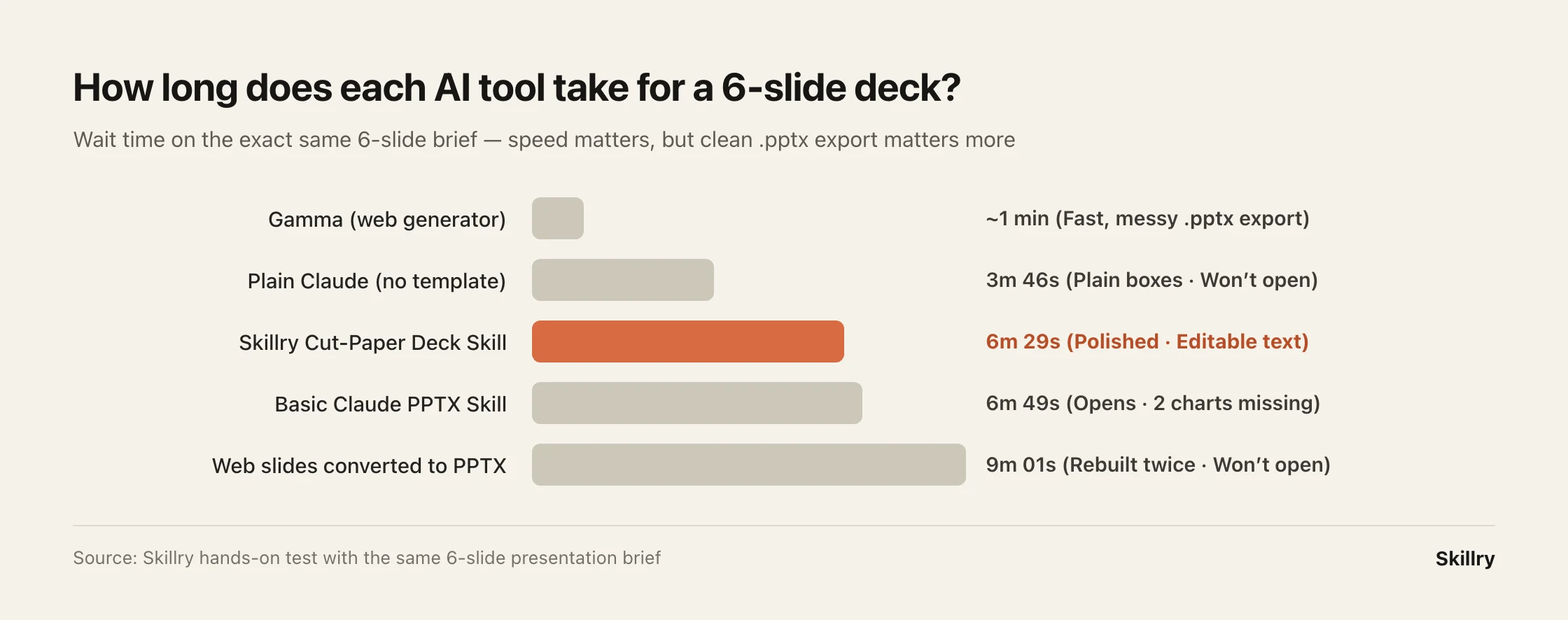
To see what actually holds up in a real meeting, we took the exact same 6-slide presentation outline, ran it through 5 popular AI slide workflows, and opened every exported .pptx file page by page on desktop.
The short answer
- Sharing a quick link with your team? Use Gamma. It builds a clean web deck in about a minute.
- Tweaking layouts by hand with lots of photos? Use Canva. Drag-and-drop editing is still its strong suit.
- Don’t ask plain Claude to make a .pptx without a template. Without a design template, it produces plain white boxes—and the exported file failed to open in Apple Keynote.
- Sending a real .pptx to a client or executive? Pair Claude with a dedicated slide template like our Cut-Paper Magazine Deck Skill. In about 6 minutes, all 6 slides opened with every chart intact and every word double-click editable.
| Way to make slides | Time needed | Visual polish | What happens when someone opens the .pptx? | Can you double-click to edit text? | Best for |
|---|---|---|---|---|---|
| 1. Gamma (web app) | ~1 min | Polished in browser | .pptx exports often shift fonts and card spacing | Yes | Quick internal syncs shared via link |
| 2. Canva (web templates) | 5–15 min | Huge template library | Decorative layouts often need manual cleanup after export | Yes | Hands-on drag-and-drop tweaking |
| 3. Plain Claude (no template) | ~4 min | Plain white boxes | Rejected by Apple Keynote with an error | — | Skip (too plain and error-prone) |
| 4. Basic Claude PPTX Skill | ~7 min | Clean but plain | Opens, but 2 bar charts vanished into blank space | Yes | Simple text-only slides |
| 5. Claude + Cut-Paper Deck Skill | ~6.5 min | Editorial illustration look | All 6 slides open intact, zero missing charts | Yes, every heading & bullet | Client pitches & executive .pptx files |
1. Same 6-slide outline, wildly different design quality
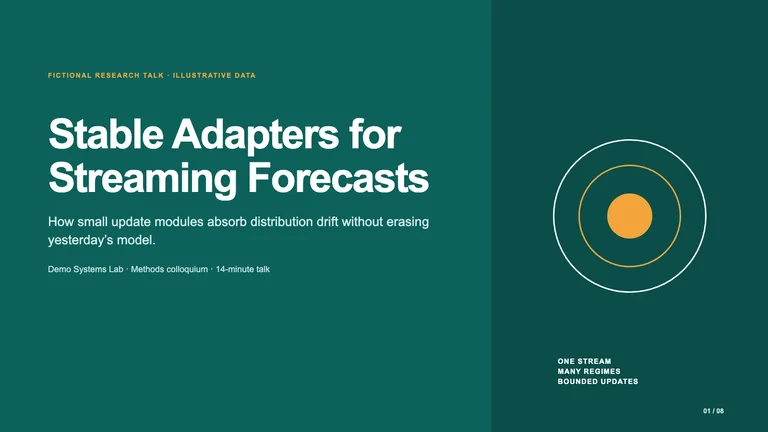
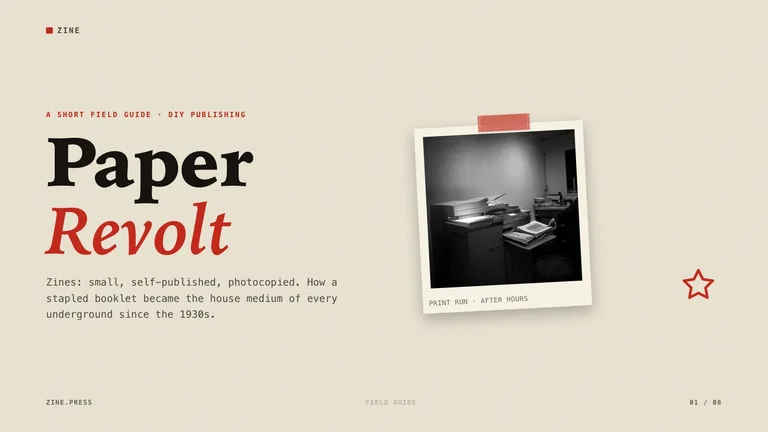
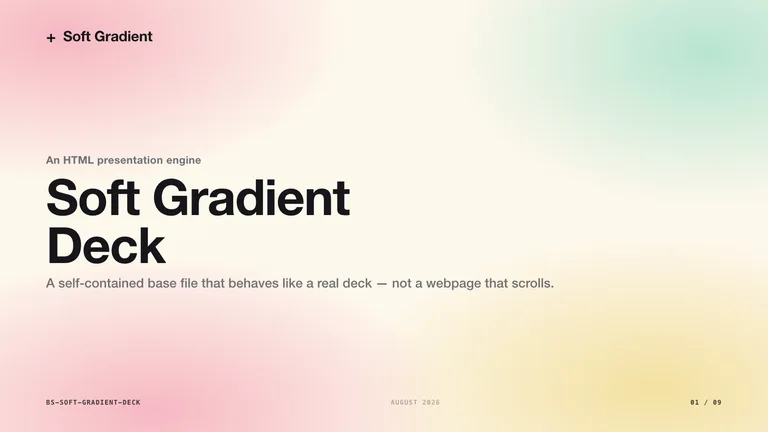
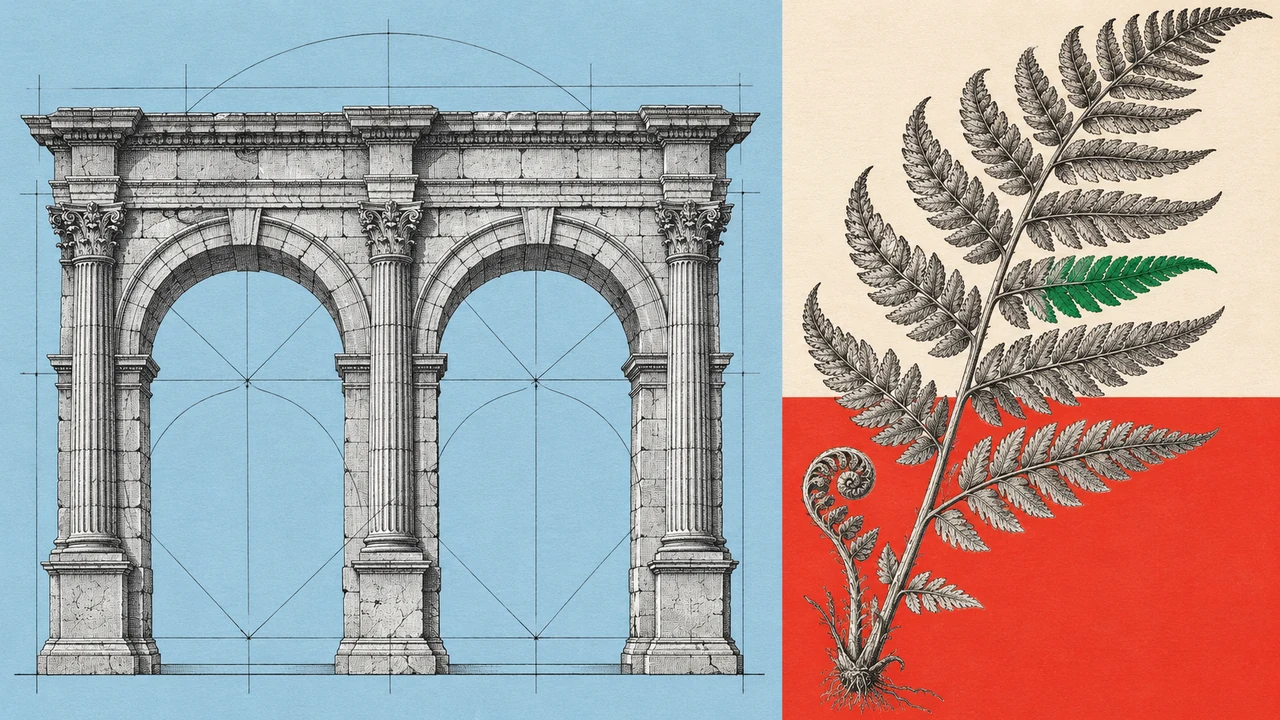
The biggest surprise for first-time AI slide users is how much the visual quality depends on having a real design system. Here are the 4 exported .pptx decks from the exact same 6-slide outline side by side:
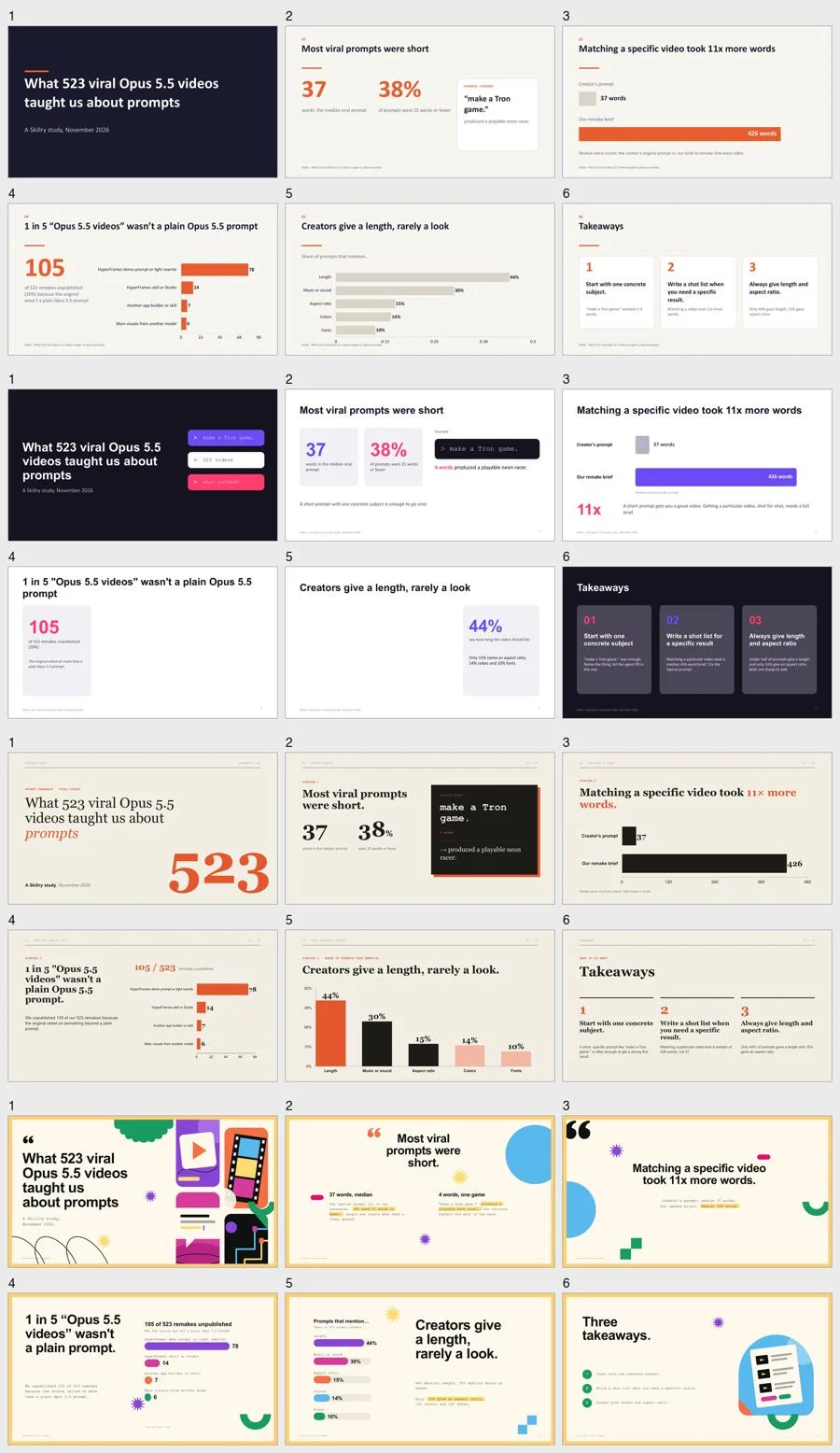
Look at the top two rows: when AI improvises a slide deck from scratch, you get stiff white rectangles, generic gray borders, and cramped text that looks twenty years old.
Compare that with the bottom row made using the Cut-Paper Deck Skill: warm paper tones, bold callout numbers, and playful illustrations—ready to present without nudging a single text box by hand.




2. Trap #1: Discovering your .pptx won’t open—or lost its charts—right before the meeting
Generating a .pptx file on your laptop doesn’t mean your boss or client can actually read it. When we opened all four exported files in Apple Keynote, two nasty surprises showed up immediately:
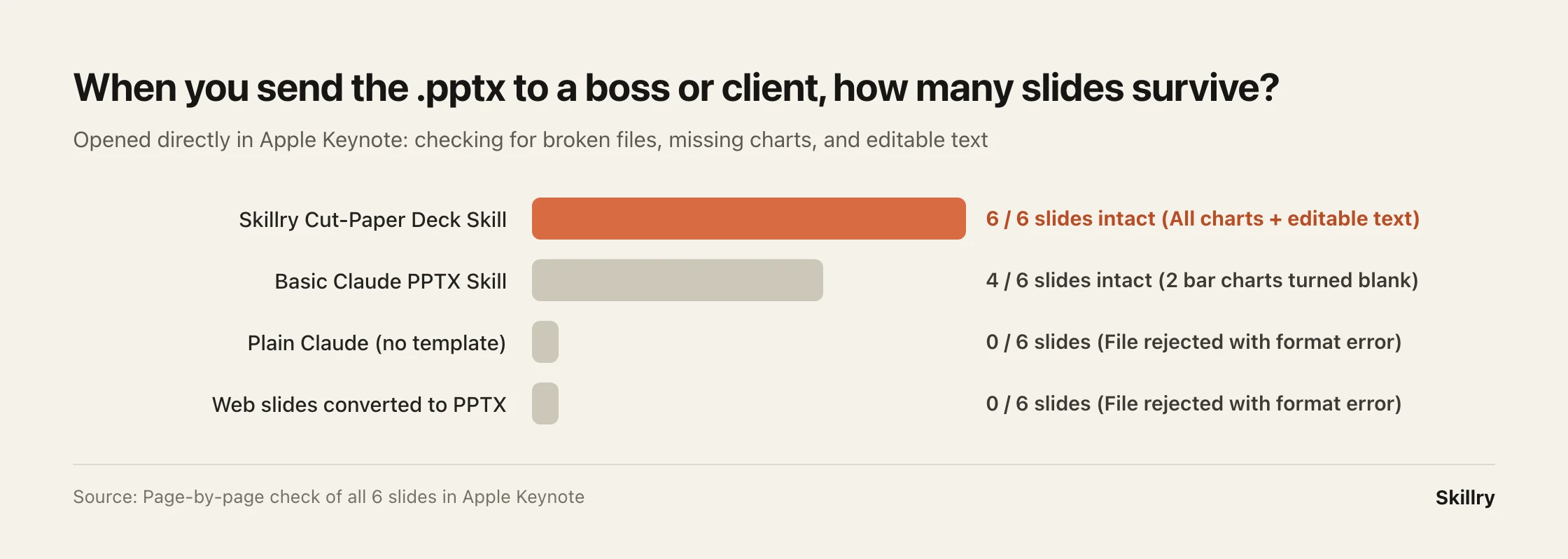
- “This file can’t be opened”: Two of the AI-generated files triggered an immediate format error in Keynote and refused to open at all.
- Charts silently disappearing without a warning: Even worse, the basic PPTX plugin opened without any error message—but on Slides 4 and 5, both bar charts vanished completely, leaving an awkward blank gap on the right half of the slide (left image below):
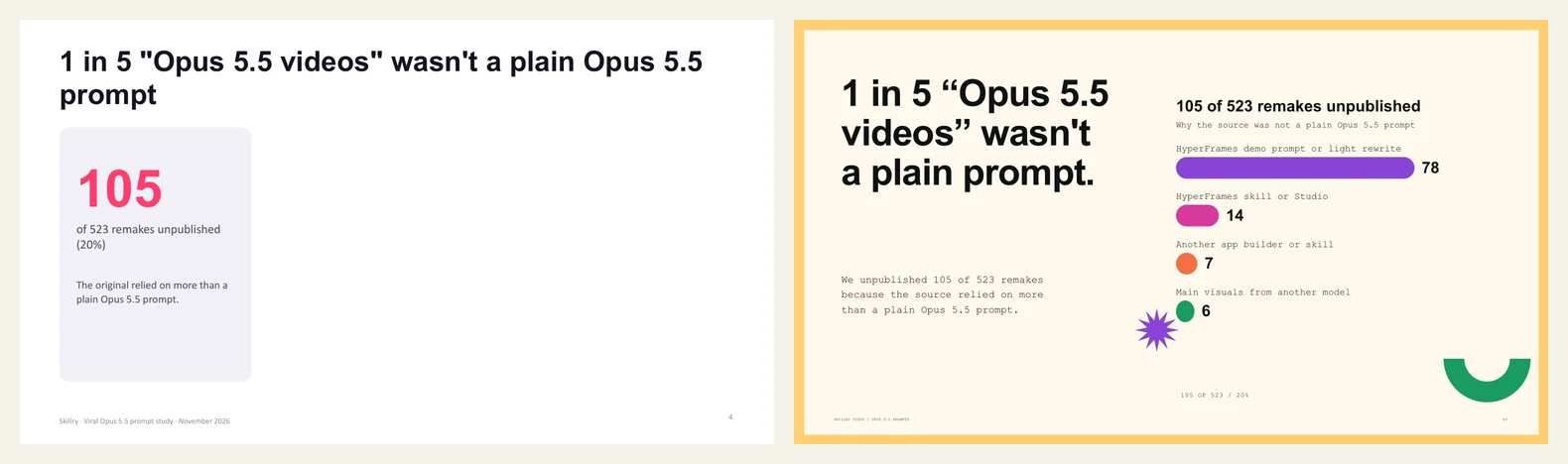
Practical tip: Never send an AI-exported .pptx straight from a download button to a client. Always open the file in PowerPoint or Keynote first and flip through every single slide.
3. Trap #2: “Pretty slides you can’t edit” vs. “editable slides that look plain”
Image-based slide generators (including tools like NotebookLM slide images) look great at first glance, until you try to change 38% to 42% five minutes before a call and realize the entire slide is a locked picture.
How does the Cut-Paper Deck Skill keep magazine-style visuals and editable text at the same time?
In plain terms: it locks the background paper texture, illustrations, and chart bars into a crisp high-resolution backdrop so nothing can shift or disappear, then places standard transparent PowerPoint text boxes right on top for every headline, bullet, and number. Whether someone opens your deck on Mac or Windows, every visual stays in place—and you can still double-click any sentence to rewrite it on the spot.
4. Which tool should you pick for your next presentation?
Match the tool to how you actually plan to present:
- Internal brainstorm or async team update: Use Gamma and share the web link directly instead of exporting .pptx.
- Social carousels or photo-heavy event slides you enjoy tweaking yourself: Use Canva.
- Turning notes, docs, or reports into a polished .pptx you have to email or present live: Install a dedicated slide Skill like Cut-Paper Deck in Claude Code or Cursor, drop in your notes, and get a clean, editable .pptx in about six minutes.
FAQ
Do I need to know how to code to use a Claude PPT Skill? Not at all. Once you drop the Skill folder in place (takes two minutes), you just chat in plain English—for example: “Turn these meeting notes into a 6-slide presentation.”
Can my teammates edit the .pptx in both Microsoft PowerPoint and Apple Keynote? Yes. Every title, bullet point, and label is a normal text box you can click and edit in PowerPoint, Keynote, or Google Slides.
How much does it cost per deck? Once installed, the template is reusable. Each deck simply uses your regular Claude usage (typically around $1–$2 of API usage for a 6-to-10-slide deck).
Fastest way
Ask your AI to do it
Paste this into the AI agent you already use:
I need to make a presentation with AI. Ask me who the audience is and whether I can share a web link or must send a real .pptx file, then help me pick between Gamma, Canva, and a Claude PPT template and structure a clear 6-to-8-slide outline.
Editable slide templates built for Claude & Cursor
Preview live outputs right on each card, then install in Claude Code, Cursor, or Codex in minutes.